

How to Automate GTU Codes in JPK_V7 in Microsoft Dynamics 365?
Manually assigning GTU codes to every invoice is a straightforward path to errors and unnecessary stress during month-end closing. Instead of wasting time verifying each document individually, let the system do it for you.
See how you can fully automate this process in Microsoft Dynamics 365 using the standard configuration.
GTU in JPK_V7 – A Necessity You Can Automate
The obligation to report GTU designations stems from the regulations introducing the new JPK VAT structure with the declaration (JPK_V7M and JPK_V7K). Since these rules came into effect, taxpayers have been reporting sales with the appropriate designations – wherever required.
The Scope of GTU Designations in Practice
The GTU catalog includes 13 groups of designations: from GTU_01 to GTU_13. In practice, they refer, among others, to selected groups of goods (e.g., specific chemical products, electronics, vehicles, medicines) and services (e.g., selected intangible and transport services). Regardless of how many of these 13 categories apply to your business, a well-configured system allows you to automate the handling of each one.
How to Handle GTU in Standard D365 (JPK_V7M/JPK_V7K)
In Microsoft Dynamics 365 (standard for JPK_V7M/JPK_V7K), GTU designations can be fully automated through parameterization in the Application-specific parameters setup area. Thanks to this, the system can autonomously assign the correct designations when posting a sales invoice and generating the JPK_V7 file – in accordance with the adopted rules, thereby relieving the team from repetitive manual work.
Example Parameterization Criteria in D365
Depending on the adopted model, GTU can be linked to, among others:
- tax code,
- item tax group,
- customer account ID,
- customer group.
The Most Frequently Chosen Approach: Item Tax Group
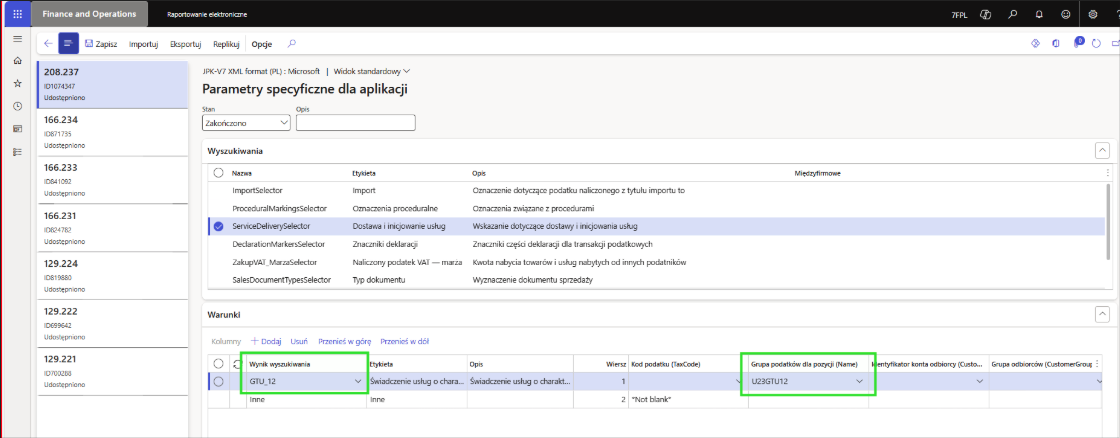
A commonly used solution is the use of the Item tax group (e.g., “GTU01”, “GTU02”, etc.), because:
- it can be assigned directly on the product record,
- or set on the sales category.
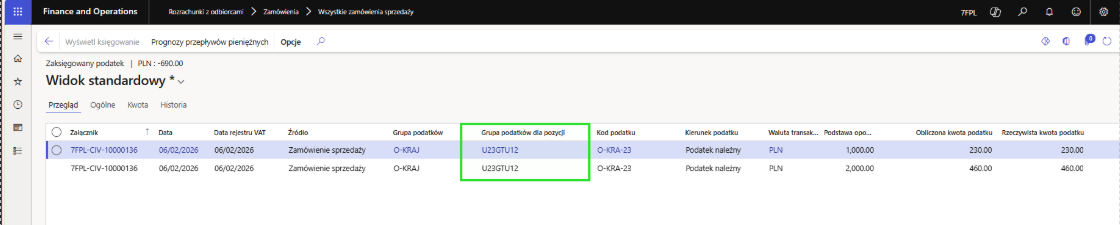
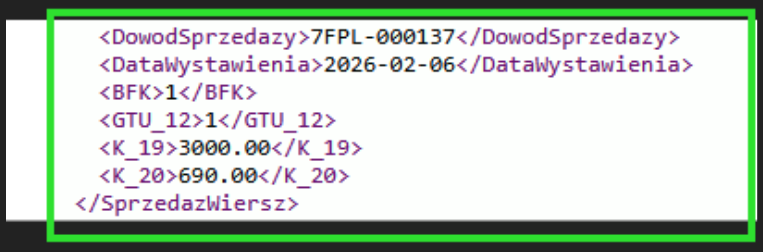
What does this mean in practice? Consequently, when creating a sales order—after selecting a product or category with an assigned item tax group—the system takes the initiative. Having this link included in the JPK_V7 parameters, D365 automatically marks the transaction with the appropriate GTU code in the generated file, requiring no additional clicks from the user.
Example of JPK_V7M parameterization using the Item tax group in D365:
Posting a sales transaction:
Extract from the JPK_V7M XML file – the system automatically checked the value 1 for GTU_12 in the file:
What Are the Benefits of GTU Automation in Dynamics 365?
A well-set parameterization provides highly practical results:
- reduces the risk of errors and missing designations,
- eliminates the need to remember manual GTU data entry,
- speeds up posting and JPK preparation,
- ensures reporting consistency – even with multiple users and a large number of documents.
Summary
Automating GTU codes saves time and guarantees reporting consistency. If you want to learn more about the standard Microsoft Dynamics 365 solution for JPK_V7M / JPK_V7K (including best practices for GTU configuration), we at 7F would be happy to conduct a brief consultation for you. You will see how the system works in practice, and we will show you the recommended parameterization model, perfectly tailored to the specifics of your processes. Feel free to contact us.

Edyta Polańska
D365 F&O Senior Consultant